
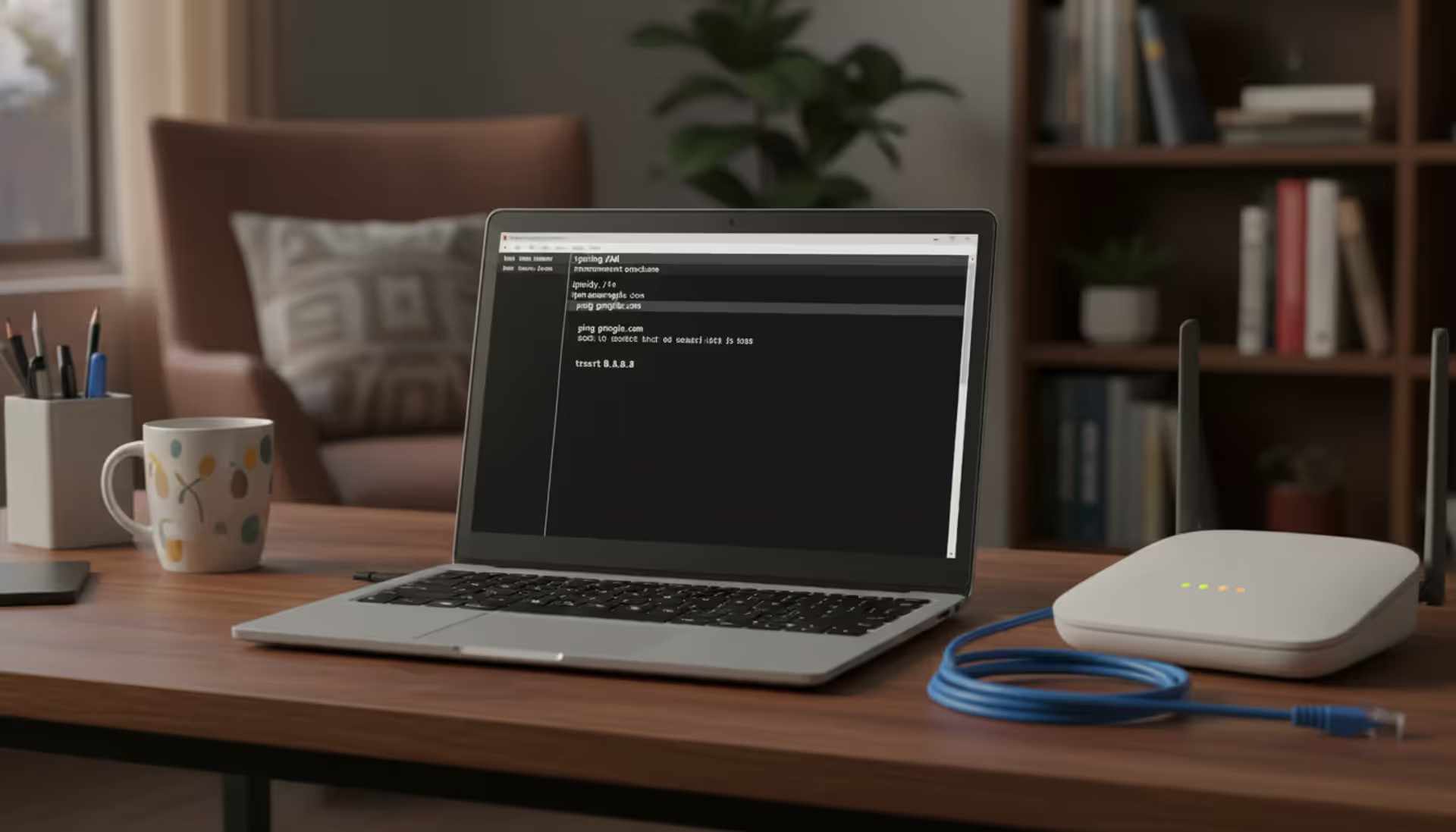
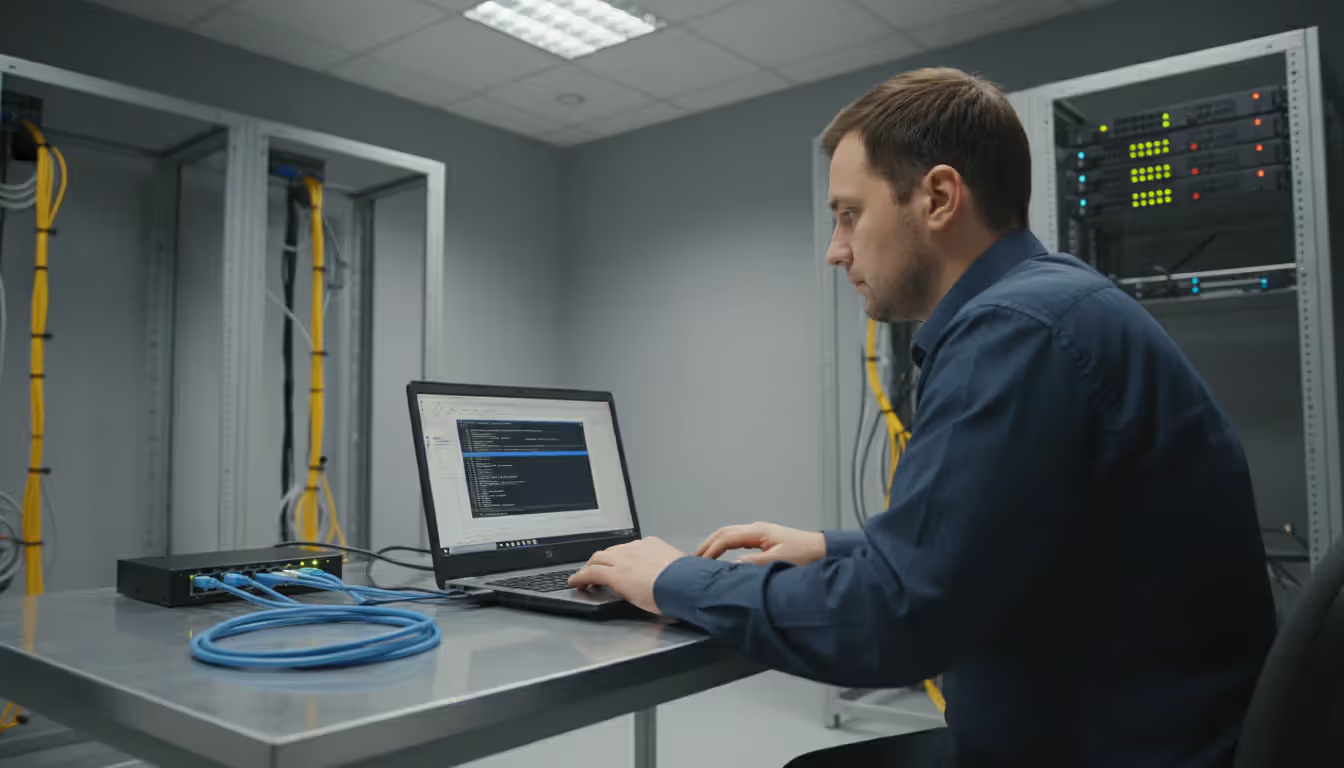
Laptop showing Windows Command Prompt with network commands on a desk next to a Wi-Fi router and Ethernet cable in a home office setting
How to Find IP Address CMD?

Ever needed to figure out what's actually connected to your home network? Maybe your internet's crawling and you suspect someone's streaming 4K on your Wi-Fi. Or you're setting up a file server and need your PC's exact local address. Whatever the reason, Windows command-line tools let you peek under the hood without downloading sketchy network scanner apps.
I've been troubleshooting networks for years, and honestly? The humble Command Prompt beats fancy GUI tools for speed and precision. Takes about 10 seconds to find your IP, maybe a minute to map your entire home network. Let me show you how.
Finding Your Local IP Address Using Command Prompt
Every device on your network gets an address—think of it like an apartment number in a building. Your router (usually 192.168.1.1 or similar) acts as the building manager, handing out addresses from its pool. These internal addresses differ completely from your public IP that websites see.
Private networks use specific ranges: 192.168.0.0 through 192.168.255.255, 10.0.0.0 through 10.255.255.255, or 172.16.0.0 through 172.31.255.255. If you see anything else (besides the weird 169.254.x.x failure addresses), something's misconfigured.
Windows CMD Commands for IP Address Lookup
Press Win+R, punch in cmd, hit Enter. You'll get that black window. Now here's the magic command:
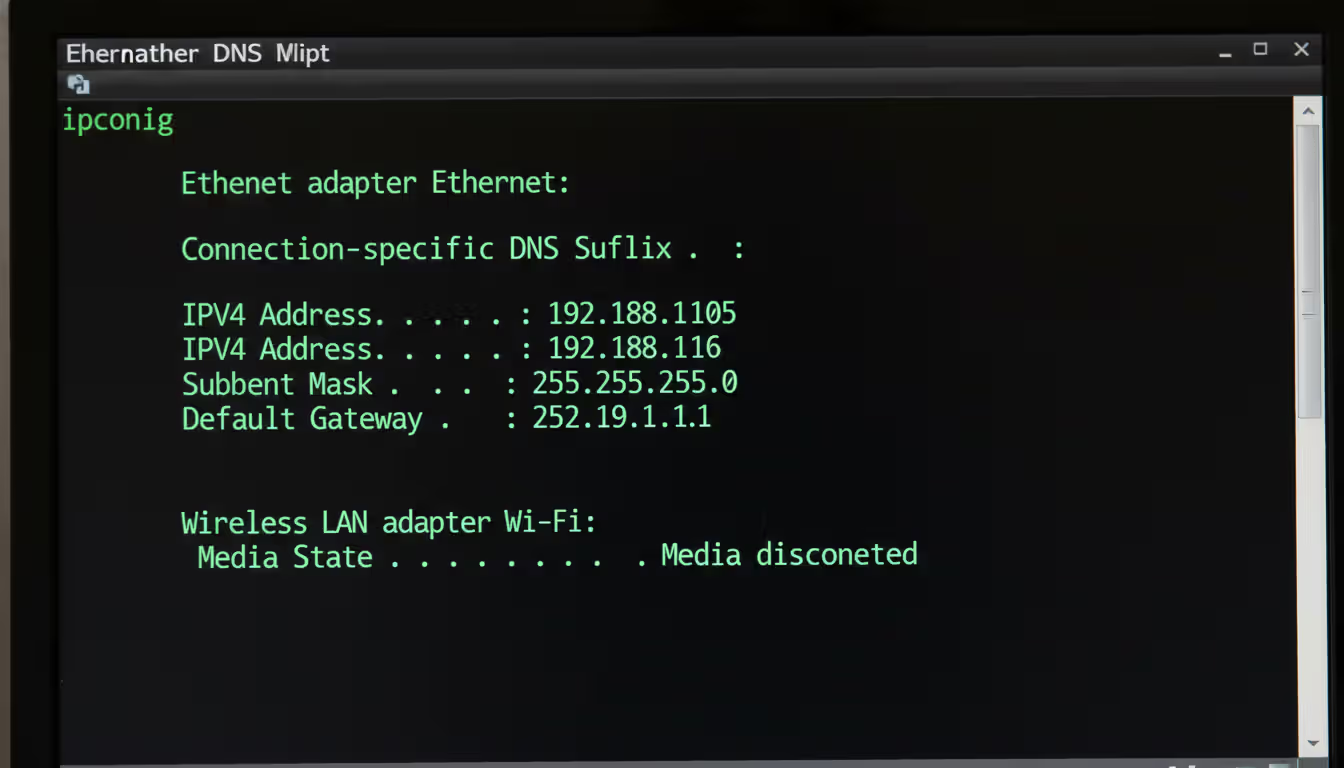
ipconfig
Boom. Three seconds later, you've got your address. Look for the section matching your connection—"Ethernet adapter" if you're plugged in, "Wireless LAN adapter Wi-Fi" if you're on wireless.
You'll spot three critical pieces of info: your IPv4 address (probably starts with 192.168), your subnet mask (usually 255.255.255.0), and your default gateway (your router's address).
Want the director's cut? Try this:
ipconfig /all
Now you're drowning in details—MAC address, DNS servers, DHCP lease times, even whether IPv6 is enabled. I use /all when DNS isn't resolving or when tracking down IP conflicts (yes, two devices can accidentally grab the same address, causing bizarre connectivity hiccups).
Author: Derek Hollowell;
Source: clatsopcountygensoc.com
Pro tip for when nothing works:
ipconfig /release
ipconfig /renew
This forces your PC to grab a fresh IP from the DHCP server. I've fixed countless "my internet's broken" complaints with these two lines. The release dumps your current address, renew requests a new one. Whole process takes 2-3 seconds.
Interpreting ipconfig Results
Reading ipconfig output is straightforward once you know what matters. That "IPv4 Address" line? That's you. If it shows 169.254.something, your PC gave up waiting for the DHCP server and assigned itself a useless fallback address. Time to check your router.
The "Default Gateway" entry points to your router—the device that shuttles traffic between your local network and the internet. No gateway listed? You're isolated from the outside world.
Subnet masks determine your network's size. The common 255.255.255.0 mask means your network can hold 254 devices (addresses ending in .1 through .254). The mask 255.255.0.0 allows 65,534 devices—overkill for home use, common in offices.
Laptops often show multiple adapters. My ThinkPad displays Ethernet, Wi-Fi, Bluetooth Network Adapter, and two virtual VirtualBox adapters. Only one carries actual traffic—the one with valid gateway and DNS entries. The others say "Media disconnected" or show no gateway.
Discovering All IP Addresses on Your Network via CMD
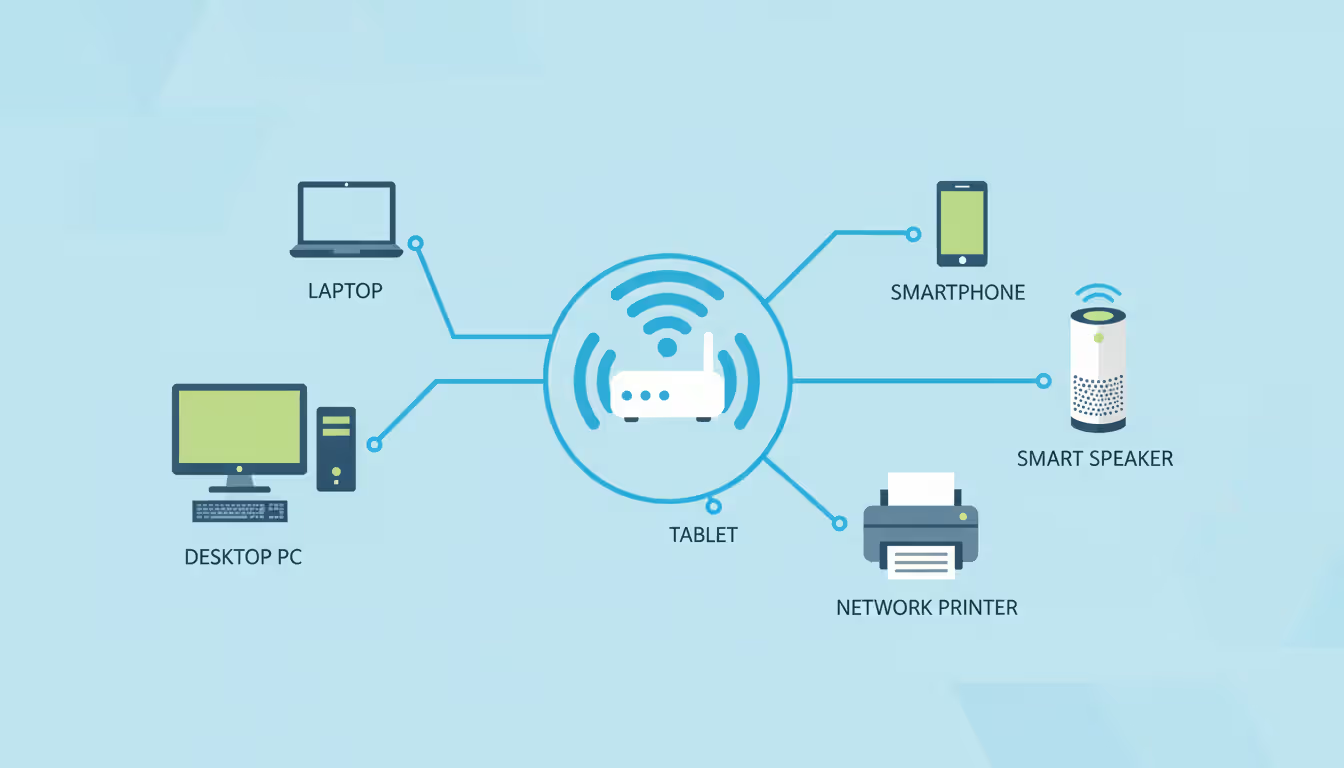
Checking your own IP is simple. Mapping every device? That requires different tactics. Your router knows everything, but who wants to log into a web interface? Let's stay in CMD.
Using ARP Command to List Connected Devices
ARP—Address Resolution Protocol—acts as your PC's little black book of recent conversations. Every time you talk to another device (your printer, phone, NAS drive), your PC jots down "192.168.1.45 is at MAC address AA:BB:CC:DD:EE:FF" in its ARP table.
Check what's recorded:
arp -a
You'll see a list pairing IP addresses with their physical MAC addresses. Each entry shows "dynamic" or "static"—dynamic entries vanish after a few minutes of silence, static ones stick around.
Here's the catch: ARP only remembers recent chats. If your tablet hasn't sent a packet in 10 minutes, it's not in the table. Your PC isn't constantly scanning—it's reactive.
Force the issue with this one-liner:
for /L %i in (1,1,254) do @ping -n 1 -w 100 192.168.1.%i > nul
arp -a
Swap "192.168.1" for your network's first three octets. This pings every possible address (.1 through .254), forcing discovery. Then arp -a reveals the full picture. Takes maybe 30-40 seconds depending on network speed.
You won't see device names or types—just IPs and MAC addresses. Those MAC addresses tell stories, though. The first half identifies the manufacturer (Google "MAC lookup"), so you can spot Apple devices, Samsung phones, or Roku boxes just from their addresses.
Author: Derek Hollowell;
Source: clatsopcountygensoc.com
Running Network Scans with Netstat
Netstat shows active connections—who your computer's talking to right now. It's less about discovery, more about monitoring.
netstat -an
The -a flag means "show everything"—all connections and listening ports. The -n flag displays raw IP addresses instead of trying to resolve hostnames (which is slow). You'll see ESTABLISHED connections (active right now), LISTENING ports (waiting for connections), and TIME_WAIT states (recently closed connections).
Need to know which program opened which connection?
netstat -anb
Requires administrator rights. Right-click Command Prompt, select "Run as administrator" first. Now you'll see which executable created each connection. Super useful when tracking down mystery network traffic or figuring out why some app won't connect.
Want continuous monitoring?
netstat -an 5
Refreshes every five seconds. I leave this running when diagnosing intermittent connection drops or watching for suspicious activity.
Advanced Network Scanning with Command Line Tools
Basic CMD works fine for quick checks. Serious network mapping demands bigger guns—PowerShell's structured output or Nmap's deep scanning.
PowerShell Commands for Network Discovery
PowerShell ships with Windows 8.1 and newer. It's CMD's evolved form—object-oriented output, built-in filtering, much more power.
View your network neighbors:
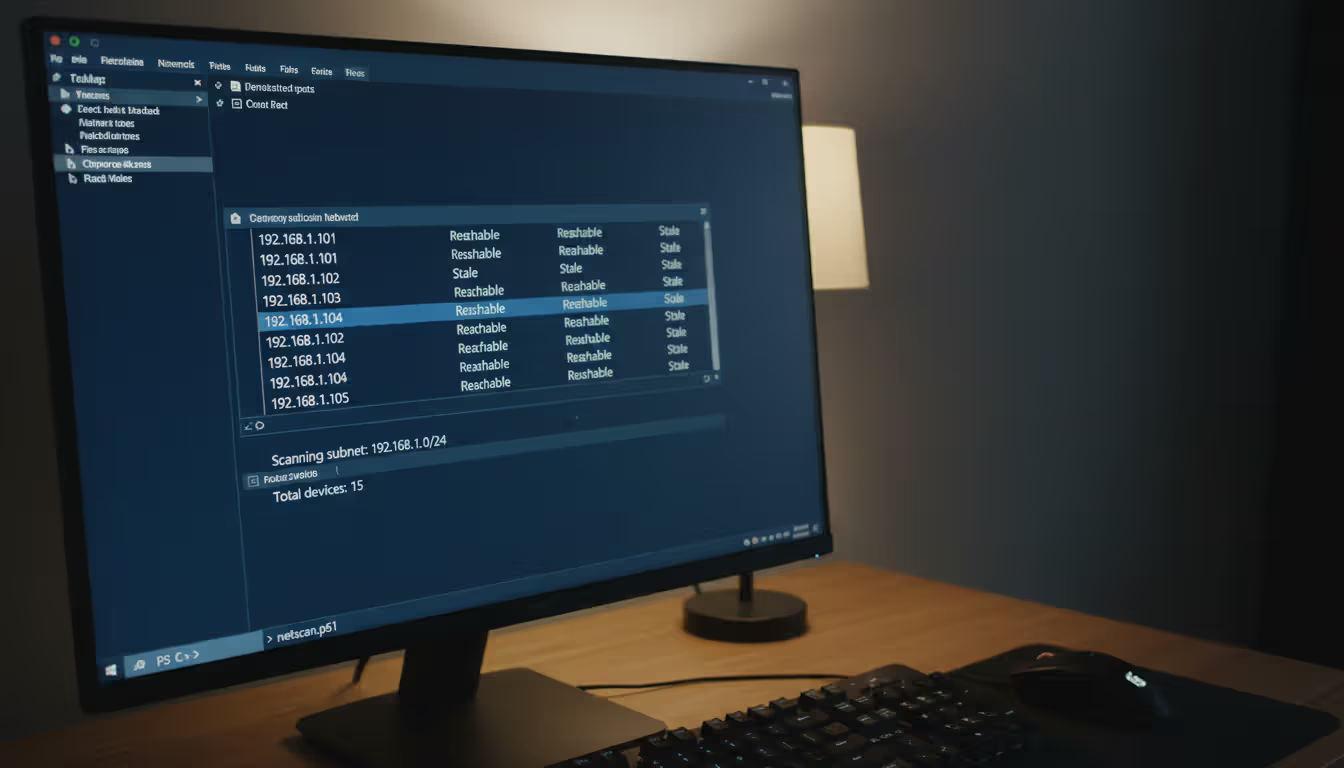
Get-NetNeighbor -AddressFamily IPv4
Unlike plain ARP, this shows reachability status: "Reachable" (working now), "Stale" (might be gone), "Unreachable" (definitely offline). Filter for only active devices:
Get-NetNeighbor -AddressFamily IPv4 | Where-Object State -eq "Reachable"
PowerShell's Test-Connection replaces ping with structured output perfect for scripts:
1..254 | ForEach-Object {Test-Connection -ComputerName "192.168.1.$_" -Count 1 -Quiet}
This scans your entire subnet, returning True for live hosts. Build on this to create automated network inventories that run hourly via Task Scheduler.
For devices with hostnames registered in DNS:
Resolve-DnsName 192.168.1.1
Reverse lookup—IP to hostname. Works when your router or domain controller maintains proper DNS records, which... isn't always the case in home networks.
Author: Derek Hollowell;
Source: clatsopcountygensoc.com
Third-Party CLI Tools (Nmap, Angry IP Scanner)
Nmap is the navy SEAL of network scanners. Free, open-source, and absurdly powerful. Download from nmap.org.
Quick host discovery across your subnet:
nmap -sn 192.168.1.0/24
That -sn flag does ping scanning without port checks—lists every responsive device in seconds. Run as administrator to get MAC addresses and vendor identification.
Check specific services:
nmap -p 22,80,443,445,3389 192.168.1.0/24
This probes for SSH (22), HTTP (80), HTTPS (443), Windows file sharing (445), and Remote Desktop (3389). Results tell you what's running where—port 3389 open suggests a Windows PC with RDP enabled, port 22 means Linux/Unix with SSH.
Angry IP Scanner provides GUI convenience but also offers command-line mode. Its multi-threaded approach hammers through scans fast—though aggressive settings might trigger intrusion alerts on corporate networks. Probably don't run it at work without asking IT first.
Here's what trips up most people: they run arp -a, see three devices, and think their network only has three devices. Wrong. ARP is passive—it only records recent communication. You have to force discovery with a ping sweep first. Also remember that ARP doesn't cross VLANs or subnets. You're only seeing your broadcast domain, which might be a tiny slice of the actual network
— Marcus Hutchins
Finding an IP Address from a MAC Address
MAC addresses are permanent hardware IDs baked into network cards. IP addresses are temporary assignments that change. Sometimes you know a device's MAC (maybe from its label) but need its current IP after DHCP shuffled addresses around.
ARP Table Lookup Method
If the device communicated recently, search your ARP cache:
arp -a | findstr "aa-bb-cc-dd-ee-ff"
Replace with the actual MAC (Windows uses hyphens, some systems use colons—adjust accordingly). If it's in the cache, you'll see its IP immediately.
Limitation: this only works for devices on your local subnet that talked to your PC recently. ARP doesn't traverse routers, so devices three switches away won't appear.
Some admins create permanent mappings:
arp -s 192.168.1.100 aa-bb-cc-dd-ee-ff
Now that association sticks until manually deleted or the system reboots. I use static entries for critical servers that must keep specific addresses.
Router Admin Panel Cross-Reference
Routers maintain complete DHCP lease tables showing every device that requested an address—even offline ones with unexpired leases.
Open your browser, navigate to your router's IP (usually 192.168.1.1 or 192.168.0.1), log in, find the DHCP client list. Exact location varies by manufacturer—Netgear puts it under "Attached Devices," TP-Link calls it "DHCP Client List," Asus uses "Network Map."
This table pairs MAC addresses with assigned IPs, hostnames (when provided), and lease expiration times. Unlike ARP, it's comprehensive—shows everything, not just recent contacts.
Advanced routers support SSH or Telnet access with CLI commands. Cisco IOS uses show ip dhcp binding, DD-WRT firmware stores leases in /tmp/dhcp.leases. Managed switches track which MACs connect to which ports, letting you build complete physical topology maps.
Troubleshooting Common IP Discovery Issues
Network scanning fails in predictable ways. Here's what goes wrong and how to fix it.
Firewall interference: Windows Firewall blocks incoming pings by default. A device can be fully operational but ignore your ping sweeps. Try alternative detection—scan common service ports (445 for Windows sharing, 80/443 for web servers) or use ARP scanning which works at a lower network level.
Insufficient privileges: Corporate networks implement 802.1X authentication, MAC filtering, or network access control limiting visibility. Standard user accounts see limited data. Need to launch Command Prompt with admin rights? Right-click it, choose "Run as administrator." Suddenly more information appears.
Stale ARP cache: Freshly booted PCs or isolated workstations show nearly empty ARP tables. Force population by pinging the subnet range first—the technique I showed earlier with that for loop. Or generate traffic naturally by accessing shared folders or printers, which automatically populates the cache.
Subnet confusion: If your PC has 192.168.1.50 with subnet 255.255.255.0, you'll only discover the 192.168.1.0/24 range. Devices on 192.168.2.x exist in a different subnet requiring routing. You won't see them in local scans. Check your subnet mask with ipconfig to understand your boundaries.
Wireless client isolation: Guest Wi-Fi networks often enable AP isolation preventing clients from seeing each other—security feature. You'll only detect the gateway router, never other connected phones/laptops. No workaround without admin access to disable isolation.
IPv6 complications: Modern networks run both IPv4 and IPv6 simultaneously. Commands like ipconfig display both, but many scanning tools default to IPv4 only. Check for IPv6 addresses in ipconfig /all (look for "IPv6 Address" entries), then use IPv6-specific tools: ping -6, nmap -6, or Get-NetNeighbor -AddressFamily IPv6 in PowerShell.
Timing problems: Coffee shop networks with people constantly connecting and disconnecting make one-time scans instantly outdated. Automated scripts running every 5-10 minutes via Task Scheduler provide better situational awareness than manual spot checks.
Author: Derek Hollowell;
Source: clatsopcountygensoc.com
Comparison of CMD Commands for IP Discovery
| Command | Purpose | Output Type | Best Use Case | OS Compatibility |
| ipconfig | Shows your PC's network settings | Text listing adapters and their configurations | Quick check of your own IP address and gateway | Windows (all versions) |
| arp -a | Displays recent IP-to-MAC mappings | Table of neighboring devices your PC contacted | Finding devices you've communicated with lately | Windows, Linux, macOS |
| netstat -an | Lists current connections and open ports | Table showing active network sessions | Identifying what your PC is talking to right now | Windows, Linux, macOS |
| ping | Tests if a specific IP responds | Success/failure messages with round-trip time | Verifying a single device is online | Windows, Linux, macOS |
| Get-NetNeighbor | PowerShell's enhanced neighbor discovery | Structured objects with rich properties | Scripting and advanced filtering needs | Windows 8.1+ (PowerShell 4.0+) |
Frequently Asked Questions About IP Address Discovery
Learning these command-line techniques transforms network troubleshooting from random guessing into methodical diagnosis. Built-in Windows tools—ipconfig, arp, netstat, PowerShell cmdlets—handle 90% of common scenarios without installing anything.
Start simple: ipconfig verifies your own settings. Graduate to arp -a for quick neighbor discovery. Need comprehensive mapping? Combine ping sweeps with ARP analysis, or leverage PowerShell's object-based output for automation. Advanced scenarios demand Nmap's port scanning and OS fingerprinting capabilities.
The key insight: network visibility depends entirely on forcing discovery. Empty ARP caches and firewall rules create false impressions of sparse networks when dozens of devices actually exist. Always run ping sweeps before assuming your ARP table is complete. Understand your subnet boundaries—you can't see across VLANs without routing. Recognize each tool's limitations so you pick the right one for each situation.
I've watched junior admins waste hours troubleshooting phantom problems because they didn't understand ARP caching or subnet masks. Don't be that person. Practice these commands on your home network where mistakes don't matter. After a week of hands-on use, they become second nature—you'll diagnose network issues in seconds rather than fumbling through GUI tools that hide what's actually happening.
One final thought: these techniques work great for home networks and small offices. Enterprise environments with managed switches, VLANs, and network access control require additional tools and permissions. But the fundamentals stay the same—understand IP addressing, recognize ARP's role, know when to escalate to more powerful scanners. Start here, build competence, expand from there.
Related Stories

Read more
Read more




The content on this website is provided for general informational and educational purposes related to cloud computing, network infrastructure, and IT solutions. It is not intended to constitute professional technical, engineering, or consulting advice.
All information, tools, and explanations presented on this website are for general reference only. Network environments, system configurations, and business requirements may vary, and results may differ depending on specific use cases and infrastructure.
This website is not responsible for any errors or omissions, or for actions taken based on the information, tools, or technical recommendations presented.